.jpg)
How to write an invoice for freelance work
This article contains affiliate links. If you purchase a tool through them, we may earn a commission — at no extra cost to you. It never influences our rankings or what we recommend.
Tools covered in this article
- DubsadoBest for full client workflow (forms, contracts, scheduling)
- Zoho InvoiceBest for free-to-start option
- FreshBooksBest for basic bookkeeping and expense tracking
- BonsaiBest for invoices, contracts, and proposals
- HoneyBookBest for service invoices + CRM
- WaveBest for true free plan for freelancers on a tight budget
If it’s your first time writing an invoice for freelance work, the process might seem confusing. You need to include your contact info, the client's billing details, an invoice number, an itemized list of services provided, the total amount due, your payment terms, and the due date.
There are two ways to go about it: do everything manually or use freelance invoice template tools that also automate the process. You can put this together manually in Word or Google Docs, or use invoicing software like Bonsai, HoneyBook, FreshBooks, or Wave to generate and send it for you.
Essentially, it doesn’t matter if your invoice looks fancy or boring. It has one job: give your clients zero excuses to delay payment and get paid on time, with no mistakes.
This guide breaks down exactly what to include on a freelance invoice, how to create and send one manually or with software, whether you're billing hourly or per project, when to send it for ongoing work, and how to follow up once a payment is late.
How to create an invoice for freelance work
Every freelance invoice should include the following, no matter what template or app you use:
Your business name and contact info: Name (or business name), email, phone number, and address. If you're self-employed and haven't registered a business name, your own name works fine.
Client’s billing details: The business name and contact person you're invoicing, so there's no confusion if the client works with multiple contractors.
Invoice number: A unique, sequential number (e.g., INV-001, INV-002) so both you and the client can track and reference it later. This also makes accounting and tax season easier.
Invoice date and due date: When the invoice was sent, and the exact date payment is due. “Due in 14 days” is fine, but an actual due date removes any ambiguity.
Itemized list of services provided: Break down each service or deliverable as its own line item, with a brief description, quantity or hours worked, rate, and subtotal. Avoid lumping everything into one vague “freelance services” line. Clients pay faster when they can see exactly what they’re paying for.
Total amount due. The sum of all line items, clearly separated from the subtotal if you’re charging tax.
Payment terms. How you expect to get paid (bank transfer, PayPal, Stripe, check) and any late fee terms and conditions if payment is missed.
Payment methods. List the specific bank details, PayPal email, or payment link so the client doesn't have to ask.
A quick way to check your invoice before sending: if a client could look at it and immediately know what they owe, why they owe it, and how to pay it, you’ve covered everything an invoice should include.
How to send a freelance invoice
Once your invoice is ready, export it as a PDF.
❌ Never send an editable Word, Excel, or Google Docs file. This way, the client can edit the invoice.
Email it directly to your client’s billing contact, and add a short note in the email body covering what the invoice is for and when the invoice payment is due. That way the client knows the basics without needing to open the PDF first.
If you're a freelancer juggling multiple clients, keep a consistent naming convention for your invoice PDFs (e.g., ClientName_INV-004.pdf) so you can find any invoice fast, especially at tax time.
Invoicing software and tools
Manual invoicing is not the only way you can invoice as a freelancer. Once freelancing becomes a steady stream of income for you, invoicing apps might save you time, energy, and lots of paperwork. Here’s everything you need to know about it, and whether it’s right for you.
What is invoicing software?
Invoicing software is a tool that lets freelancers (and other business owners) create, customize, and send invoices from one place, as well as track late payments and send automatic reminders, all instead of building them manually in Microsoft Word or Google Docs.
Most platforms also handle client management, payment collection, and automatic follow-ups on unpaid invoices. As a result, they save hours on manual admin tasks. Some tools also offer free invoice template solutions that are helpful even if you don’t need a full-scale app to send an invoice yet.
A few tools worth comparing if you're picking software for the first time:
Tools covered in this article
- DubsadoBest for full client workflow (forms, contracts, scheduling)
- Zoho InvoiceBest for free-to-start option
- FreshBooksBest for basic bookkeeping and expense tracking
- BonsaiBest for invoices, contracts, and proposals
- HoneyBookBest for service invoices + CRM
- WaveBest for true free plan for freelancers on a tight budget
Why use invoicing software? Do I need it?
If you send one or two invoices a month, manual works fine. But once you're managing multiple clients, invoicing software usually pays for itself in time saved, mainly on the follow-up step, since automatic reminders catch late payments before you have to chase them yourself.
It also cuts down on invoicing mistakes: wrong totals, missing invoice numbers, or forgetting to note payment terms and conditions. All in all, if you’re a freelance business that relies on your work as one of the main revenue streams, invoicing software is a necessary expense.
How to use invoicing software
Here's what the process looks like using Zoho Invoice as an example:
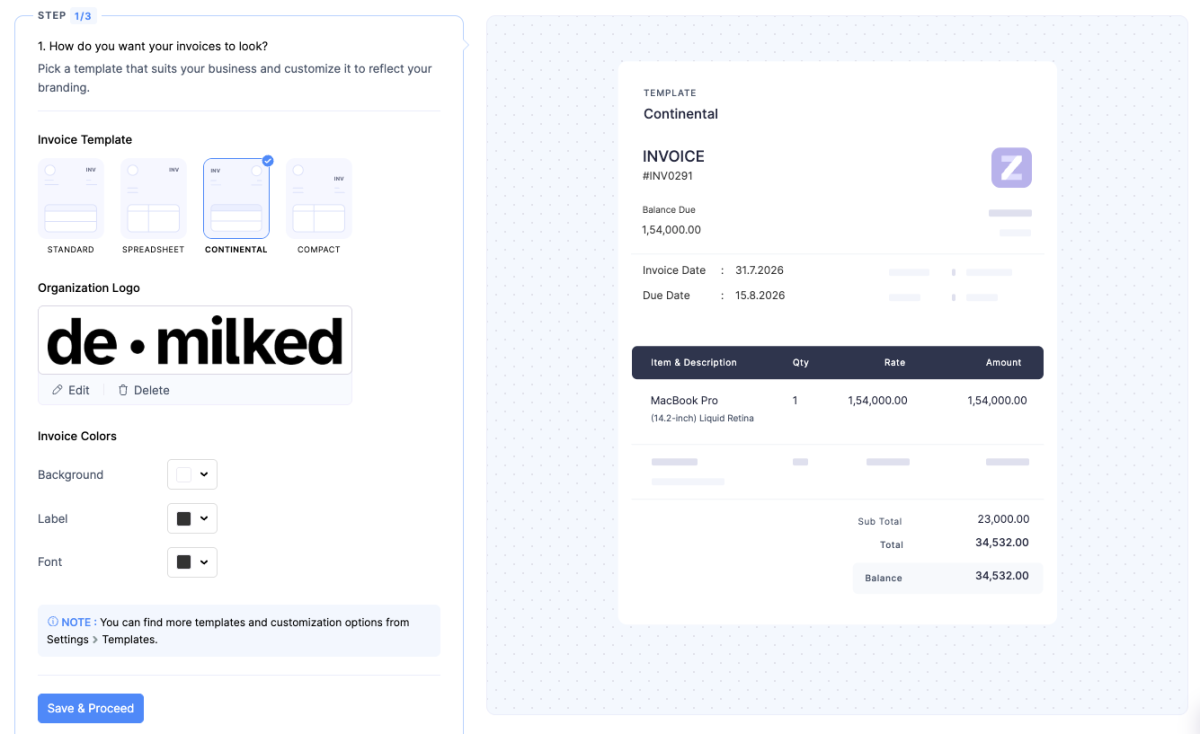
Pick a template
Pick a customizable invoice template for freelance work. Zoho offers professional invoice templates and best practices on the free plan, and more customizable freelance invoice templates for specific cases on paid tiers.
Adjust the invoice with your logo, brand colors, and business details once, then reuse them for every client.
Pick a payment option
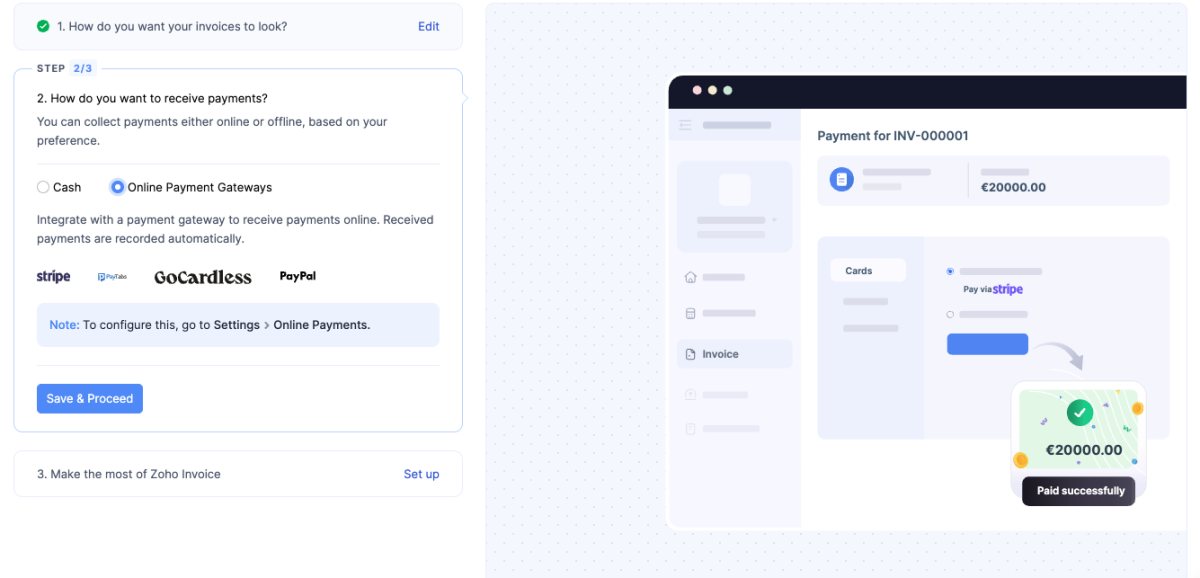
The benefit of using a tool to send your invoice is the many payment options it opens up for you. Choose how you want to receive payments: cash or online payment gateways.
Different invoicing tools have different options available. Zoho, for example, offers Stripe, PayPal, GoCardless, and PayTabs, which, in simple terms, means your international clients will be able to pay straight away.
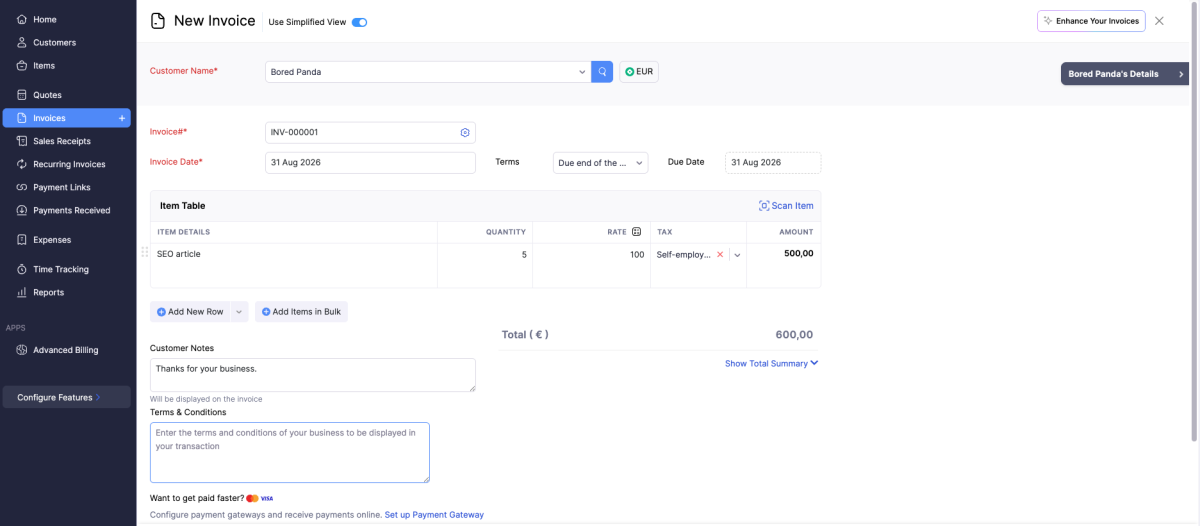
Create your invoice
Add your client’s billing info, then list services as line items with hours worked or a flat rate. Zoho Invoice calculates the subtotal and total automatically, including tax if it applies.
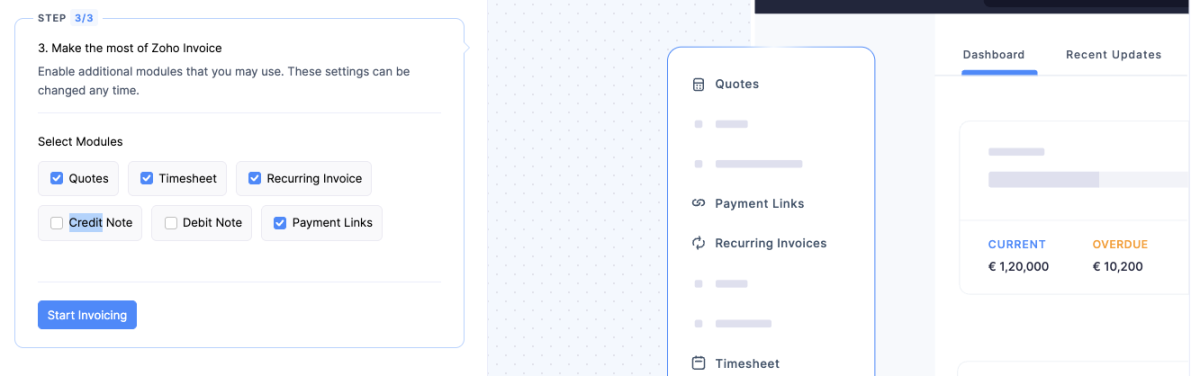
Tools like Zoho also allow for custom fields in their self-employed invoice template options, such as quotes, timesheet to track your work, and more.
Send the invoice
Zoho Invoice emails it directly to your client with a built-in payment link, so they can pay by card, PayPal, or bank transfer without leaving their inbox.
Set up reminders
Turn on automatic payment reminders before and after the due date, so you're not manually tracking who owes what.
Track payment status
Check your dashboard to see which invoices are paid, pending, or overdue across all clients.
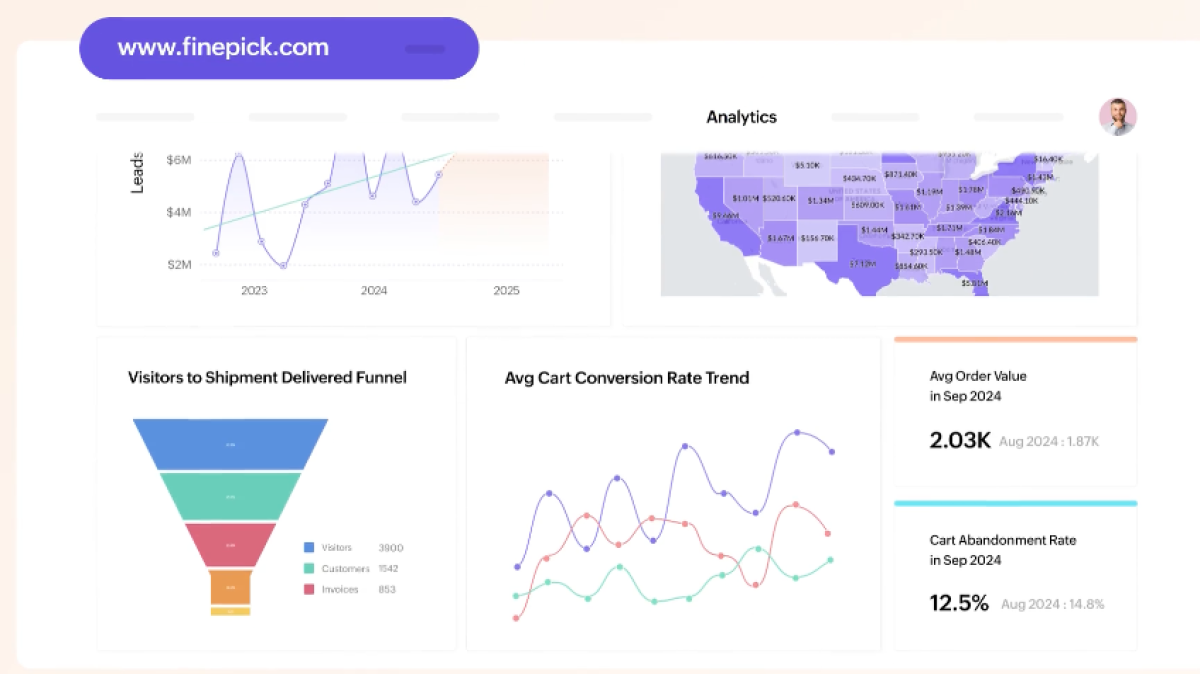
Image credits: Zoho
The same basic flow applies across most invoicing tools (templates, creation, sending, reminders, tracking), just with different interfaces, pricing, and free-plan limits.
Should you use invoicing software?
Manual invoicing works fine when you have one or two clients. Once you're juggling several, invoicing software like Bonsai, HoneyBook, FreshBooks, or Wave usually saves more time than it costs to learn.
Here's what these tools typically handle for you:
Invoice templates: pre-built, customizable invoice templates so you're not rebuilding the layout from scratch every time. Add your logo, brand colors, and saved client details once, then reuse them.
Invoice creation: fill in line items, hours worked, or a flat rate, and the software calculates totals (and tax, if applicable) automatically. Less room for a typo to cost you money.
Sending: invoices go out by email straight from the platform, usually with a payment link built in so the client can pay by card or bank transfer without downloading anything.
Follow-ups: this is the biggest time-saver. Instead of manually tracking due dates and nudging clients yourself, the software sends automatic payment reminders before and after the due date.
Payments: most platforms let clients pay directly through the invoice, and some support recurring billing for ongoing work or retainer clients.
Tracking: a dashboard view of what's paid, pending, or overdue across all your clients, so you're not digging through email threads to check invoice status.
If you send more than a handful of invoices a month, or your clients “forget” to pay, software closes most of the gaps, mainly the follow-up step, which is the one most freelancers skip until it's already a problem.
With 5+ years in the creator, entertainment, and publishing spaces, Mia shortlists, reviews, and ranks leading tools that actually make your life easier.