How to repurpose 1 YouTube video into 30 content pieces
Turn one “hero” video into 30+ content pieces to fuel your entire content funnel. Here’s how to automate your content repurposing workflow in 3 hours or less.
This article contains affiliate links. If you purchase a tool through them, we may earn a commission — at no extra cost to you. It never influences our rankings or what we recommend.
Why repurpose content?
In 2026, social media platforms reward not just the quality of content, but the quantity. If you’re spending hours creating one video and posting it only once, you’re missing out on 30+ touchpoints that you can use to connect with your audience — all without creating anything new.
In this guide, we’ll show you how to repurpose one long-form video into multiple pieces of content that will reach more people, with free tools and a two-hour weekly process.
What you’re going to create
Before we walk through the steps, here's the full output of this workflow. One video becomes:
Platform | # of pieces | |
|---|---|---|
| Short-form video (60-90s) | YouTube Shorts, TikTok, Instagram Reels | 6-8 |
| Twitter/X threads | Twitter/X | 1 (7-10 tweets inside one thread) |
| LinkedIn posts | 2-3 | |
| Newsletter | Email list, Substack | 1 |
| Blog post | Website | 1 |
| Instagram carousel/post | 2-3 slides | |
| Quote graphics | All platforms | 5-6 |
| Community post | YouTube, Reddit | 1 |
| Pins | 3-4 | |
| Podcast-style audio clip | Spotify, Apple Podcasts | 1-2 |
Add those up and you're comfortably at 25-30 content pieces from a single video. The exact mix will shift based on your platform focus, but the workflow is the same.
01. Get a clean transcript: 10 minutes
Everything in this workflow starts from one source: the transcript. If your transcript is messy, with filler words, wrong punctuation, and AI nonsense, every repurposed piece suffers. Start clean.
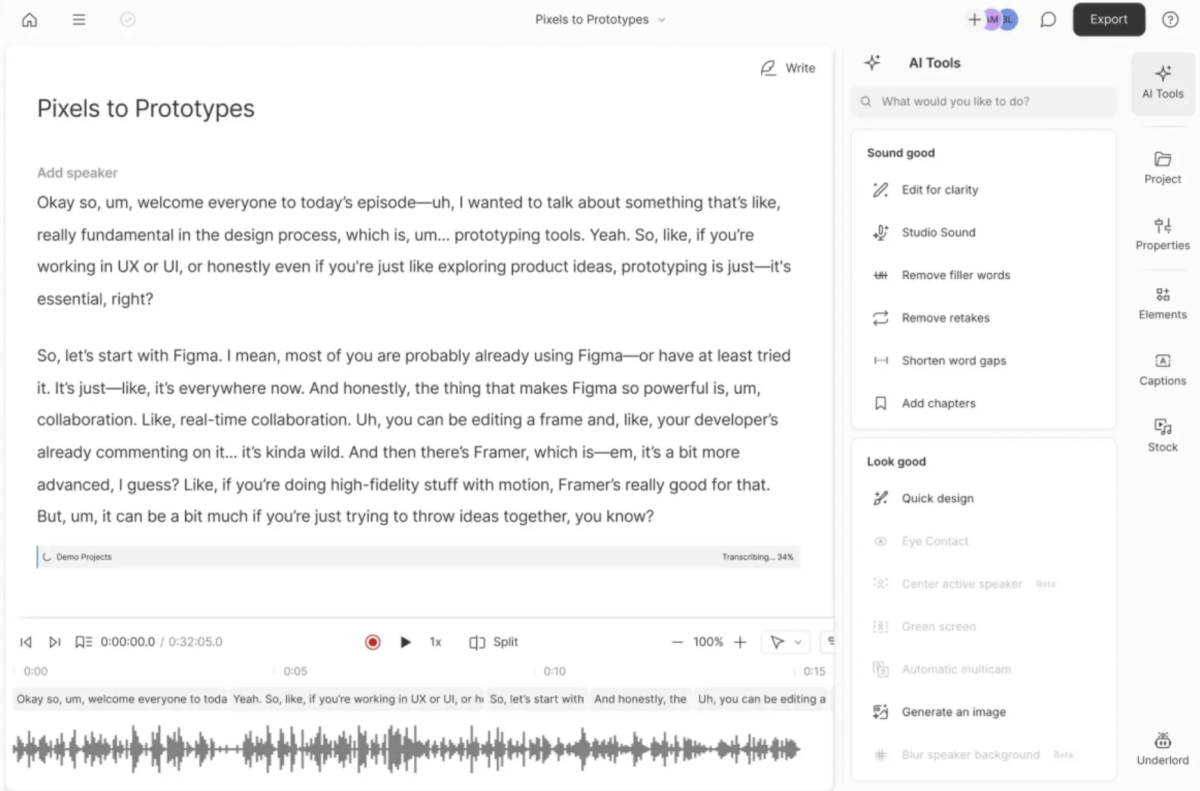
Upload your video to Descript. It automatically generates a transcript synced to your timeline, corrects for speaker patterns, and lets you edit the video by editing the text, which becomes useful in Step 2.
The AI video editor that makes content creation as easy as typing.
Once your transcript is clean, export it as a plain text (.txt) file. This becomes your source document. Paste it into every AI tool you use in the steps ahead.
The free Descript plan comes with 60 minutes of in-app edited video. This is more than enough for a beginner creator to repurpose at least two long-form videos a month.
02. Extract core ideas with AI: 15 minutes
A transcript is raw material, not content. The next move is to extract the structured insight from it. Open Claude (or your preferred AI like Gemini, ChatGPT, etc.) and paste in your transcript.
Prompt template to steal:
“Here is the transcript of a YouTube video. Please extract: (1) the 5 core insights or arguments, (2) the 3 most quotable lines, (3) a 150-word summary, (4) 7 Twitter thread hooks, (5) a newsletter intro paragraph. Keep language close to the original voice.”
Save these outputs in a Notion doc alongside the video link, transcript, and target publish dates. This becomes your content brief: the single source of truth for every format you'll produce.
Google Docs or Google Sheets work for this too, but Notion is more convenient for organized planning, and the free version will support you in the long-term.
03. Cut short-form clips: 30 minutes
Short-form clips are the highest-volume, highest-engagement output from your repurposing workflow. A 15-minute video typically contains 5-10 standalone moments: a hot take, a clear how-to, a surprising stat, a before/after example. These become your Shorts, Reels, and TikToks.
What makes a clip actually work
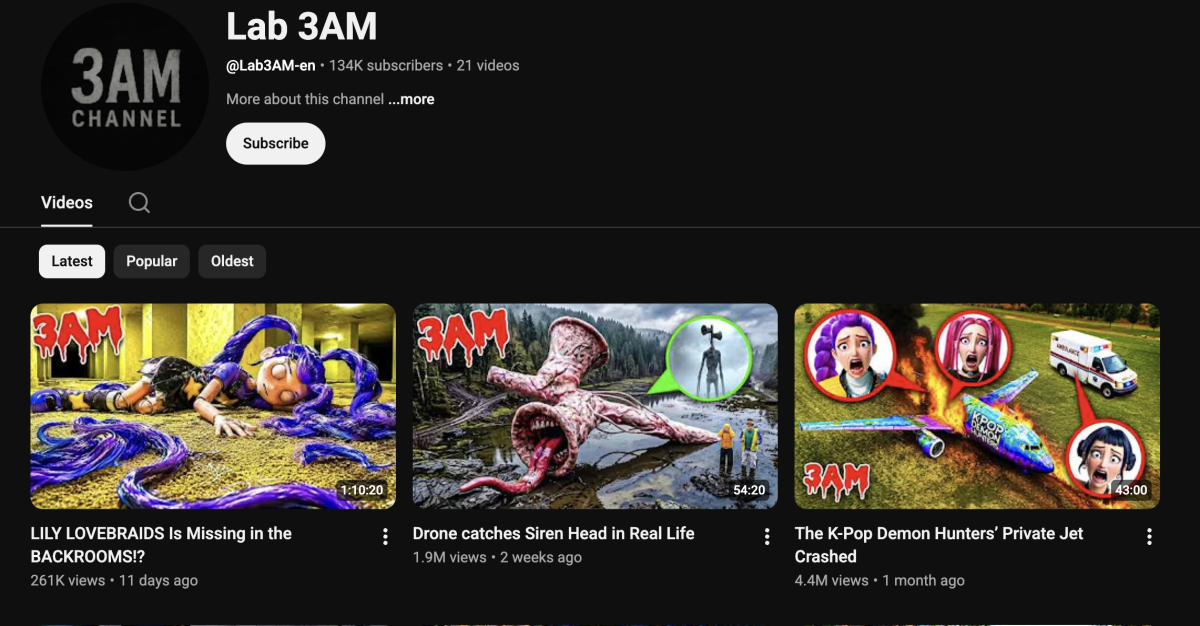
Not every moment from your video is worth turning into a Short. According to Video Editing Lead at 3AM Labs, who works on repurposing content at scale, two things separate clips that perform from clips that get swiped past.
1. Hooks: You have one second
A short-form vertical video only has one second to hook a viewer before the finger goes down and swipes again. Any segment worth turning into a Short needs at least one hook at the start — something loud, flashy, surprising, or urgent.
Gimmicks come and go, but a manufactured sense of urgency tends to be the most reliably effective. If a moment from your video doesn’t have a natural hook built in, you can sometimes create one through editing — a sharp cut, a sound effect, an attention-grabbing text overlay — but these manufactured hooks rarely perform as well as moments where the content itself is the hook.
by Video Editing Lead at 3AM Labs
2. Key moments: think roller coaster, not flatline
A strong hook alone isn’t enough. The clip needs to sustain interest throughout its duration. Let the intensity from the opening subside slightly, then raise it again with a second peak — a comedic moment of levity, a surprising reveal, or an unexpected cut.
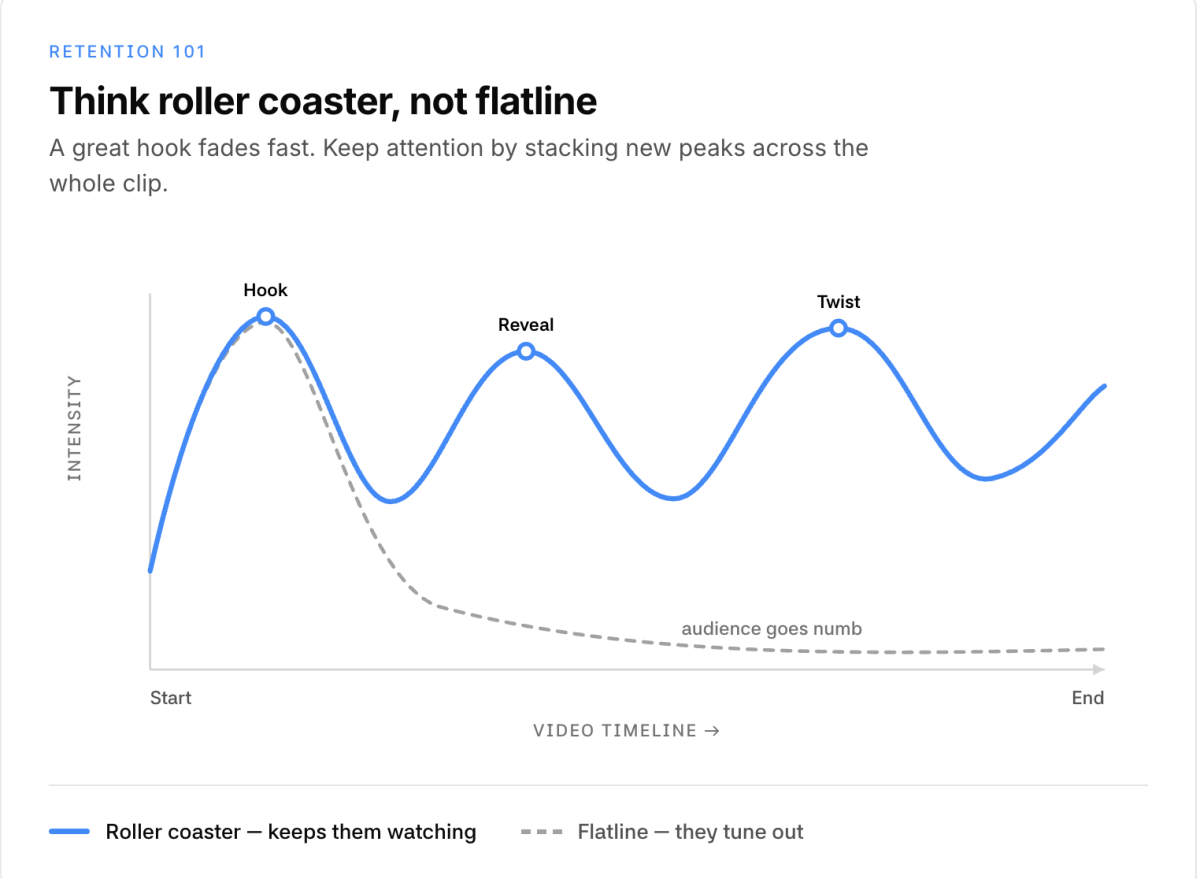
If the energy stays flat from start to finish, the audience grows “numb” and disengages. Think of it like a roller coaster: the ride needs more than one drop.
Use hooks, not just run time, to define where one Short ends and another begins. These high-energy moments are natural cut points. They tell you which segments can stand alone.
3. Focal points and captions: keep the viewer locked in
Two finishing touches make a significant difference in watch time and engagement. First, captions. They’ve become a staple of short-form content because they engage the viewer on an additional front simultaneously (listening, watching, and reading), while also improving comprehension and making videos watchable on mute.
Second, keep focal points clear. If your video features two people, that’s easy. If it features eight, edit it down to as few as possible. The audience cares about what they’re watching right now, not the number of sources you can show them.
Cut to its bare essentials: but never cut so much that you remove the meaning. A clip with no clear intent is just noise.
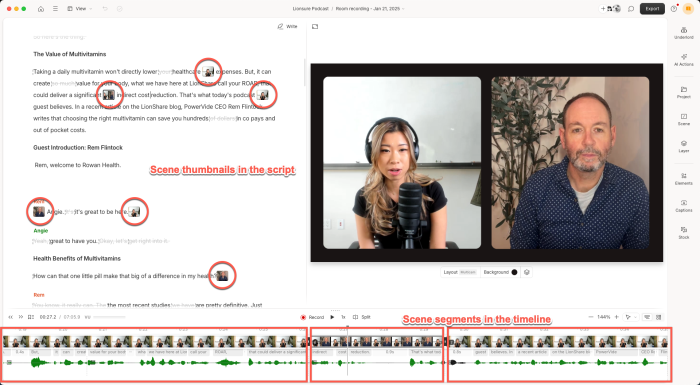
In Descript, use the Scenes view to identify high-energy segments. Export them as separate clips. If you don’t have the original project file (e.g., you’re reediting older content), use scene cut detection to automatically break your video into individual shots — almost all editing applications support this. If your footage is 16:9 widescreen, auto reframe (also called smart reframe) will adjust the shot position and track the point of interest for vertical formats so you don’t have to crop manually. Both Premiere Pro and DaVinci Resolve handle this well.
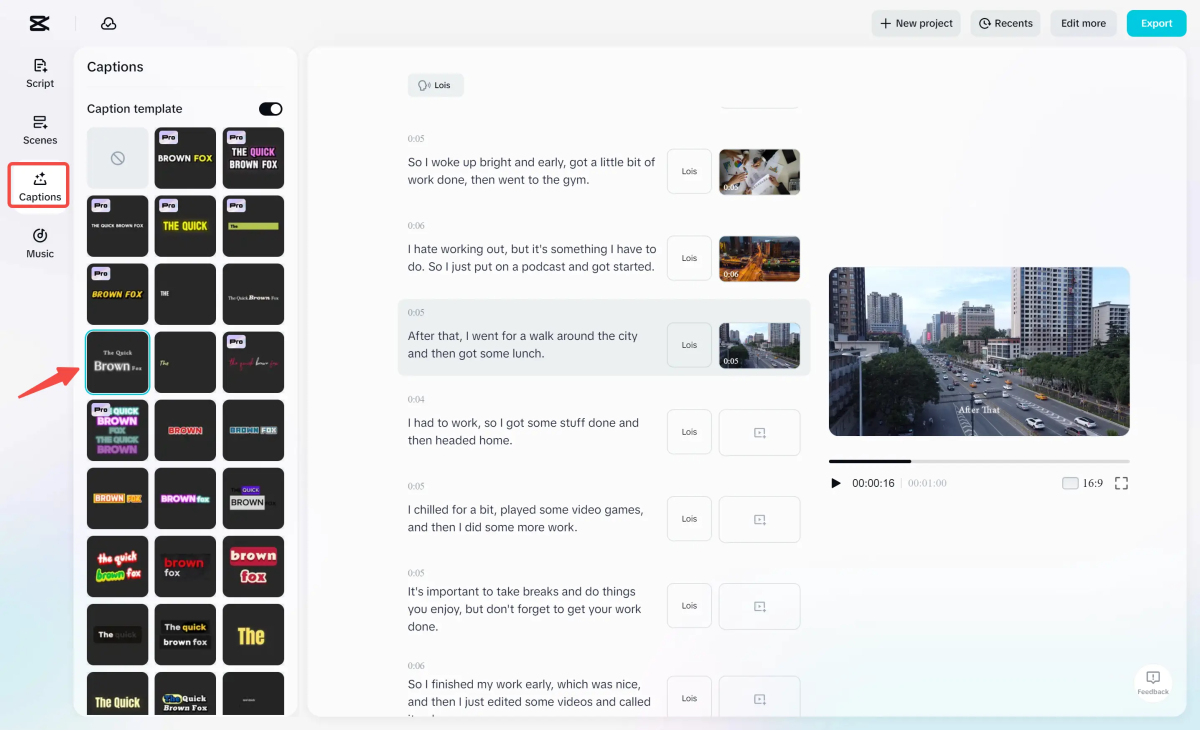
Then bring them into CapCut for mobile-first formatting: auto-captions, aspect ratio conversion to 9:16, and viral-style text overlays.
You can also keep all your editing work in Descript to minimize tools used, but you’ll quickly run out of the free 60-minute monthly limit if you do all your editing there.
CapCut's auto-caption tool reads the audio and generates timed captions that are accurate enough to publish with minimal editing. This matters because 85% of short-form video is watched without sound.
The batch export feature lets you push multiple clips through the same format template in one pass. CapCut’s free version is flexible enough to sustain your editing needs for months.
Want to skip the manual clip-selection step entirely? Use an AI clipper.
AI clipping tools have become genuinely capable at identifying high-interest moments in long-form video and trimming them into Shorts automatically — including auto-captions. Tools like OpusClip, Klap, CapCut’s AI repurposing feature, and Canva’s long-to-short converter all work on the same principle: they detect when something of interest is happening and build a Short around it.
Most will also accept a script if you have one, which significantly improves captioning accuracy. The results tend to be strong on average, though they work best as a first pass — you’ll still want to review each clip for hooks and pacing before publishing.
Industry standard for short-form video editing.
04. Repurpose written content: 30 minutes
With your extracted content brief ready (from Step 2), the written formats go fast. The AI has already done the structural work. Your job now is voice and quality.
Twitter/X thread
Take the 7 thread hooks from your brief. Pick the strongest one as your opening tweet, then sequence the insights as separate tweets, ending with a call to action to watch the full video.
Threads consistently outperform single tweets for reach in the creator space, especially when the first tweet delivers standalone value.
Newsletter
Use the 150-word summary and newsletter intro as your base. Add 1-2 sentences of personal commentary that didn't make the video, something that happened in the research, a counterargument you cut for time, or an update since filming. This makes the newsletter additive, not just a summary, which drives opens over time.
LinkedIn post
LinkedIn rewards professional framing of creator insights. Take one of the core ideas from your brief and frame it as a career or business lesson rather than a YouTube creator insight. Lead with the finding, not the story.
Blog post
Your transcript is already a rough draft. Restructure it with headings, clean up the text, and add one or two additional points for SEO. This is the format that gives you returns over time: Google traffic arrives months after publishing, long after your video's initial spike.
Run every written piece through Grammarly before publishing. If you still aren’t doing it, it’s time to start: Grammarly is free, catches typos and grammar mistakes, and helps your content look polished. You overlook one typo and lose trust of your reader. Don’t make this mistake.
Writing assistant to improve spelling, grammar, punctuation, and tone.
05. Build the visuals
The visual layer — quote cards, carousels, Pinterest pins — is what makes your repurposed content look intentional, not copy-pasted. Here’s how to make them easily, no designer needed.
Quote graphics
Take the 5-6 quotable lines from your brief. Drop them into a branded template in Canva. Use one consistent visual system (same fonts, same color palette) so every graphic instantly reads as your.
Canva's background remover and text-to-image features can accelerate thumbnail variations for the clips in Step 3 as well.
Instagram carousels
A carousel works best when it teaches a numbered list or step-by-step process — which is exactly what most YouTube how-to videos contain. Map your core insights (from Step 2) onto individual carousel slides. Slide 1 is the hook (a surprising stat or contrarian claim). Slides 2–8 are the steps. The final slide is the CTA.
06. Schedule everything and close the loop
The last step is posting all content without manually logging into eight platforms across two weeks.
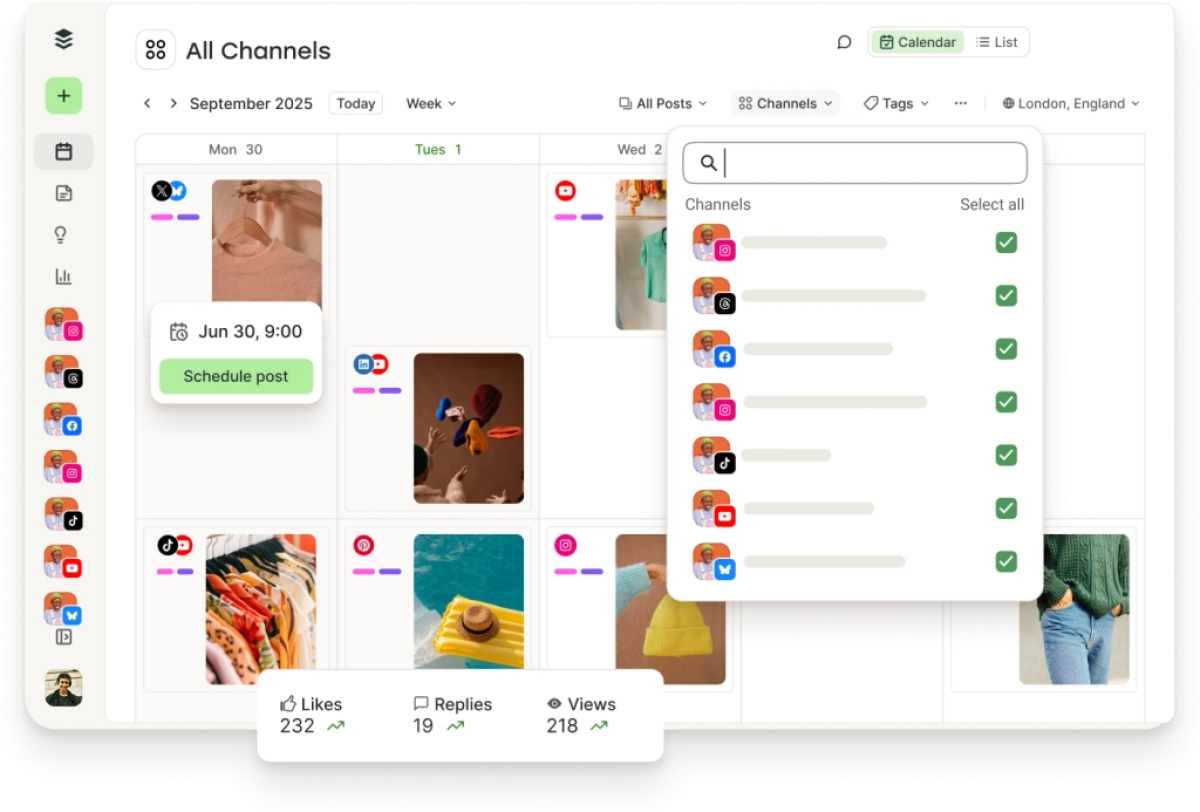
Return to your Notion content brief and fill in the publish dates for each format. Batch-schedule social posts using Buffer — connect your YouTube, Instagram, Twitter, LinkedIn, and TikTok accounts once, then queue everything from one dashboard.
We also reviewed other social media schedulers – check out our guide to the best social media schedulers for Solo Creators in 2026 (Tested).
The simplest scheduler and the most usable free plan for new creators.
07. Putting the full workflow together
Here's the complete system at a glance — from raw export to scheduled content:
Export + transcribe → Upload to Descript. Get clean transcript. Export as .txt.
Extract → Paste transcript into Claude. Generate content brief: 5 insights, quotes, summary, thread hooks, newsletter intro.
Save brief → Open Notion. Create a video row. Paste all outputs. Set publish dates.
Cut clips → Back in Descript, identify 6-8 moments. Export clips. Bring into CapCut for captions + 9:16 formatting.
Write → Use brief to draft Twitter thread, newsletter section, LinkedIn post, blog article. Run all through Grammarly.
Design → Drop quotable lines into Canva templates. Build carousels from step-by-step structure.
Schedule → Queue everything in Buffer (or another scheduler of your choice).
Realistic time investment: 2-3 hours for someone running this workflow for the second or third time.
Tools used in this workflow
Descript: transcription, clip selection, and scene editing
CapCut: short-form formatting, auto-captions, batch export
Claude / LLM of your choice: content extraction and brief generation
Notion: content brief database and publishing calendar
Grammarly: written quality control across all text formats
Canva: quote graphics, carousels, branded visual templates
Buffer: multi-platform scheduling and analytics
You don't need all seven from day one. If you're just starting, pick up Descript + Notion + Buffer as your core stack. Add CapCut and Canva once you're producing clips and graphics consistently. Grammarly is worth adding early if you're publishing written content at any volume.
With 5+ years in the creator, entertainment, and publishing spaces, Mia shortlists, reviews, and ranks leading tools that actually make your life easier.